

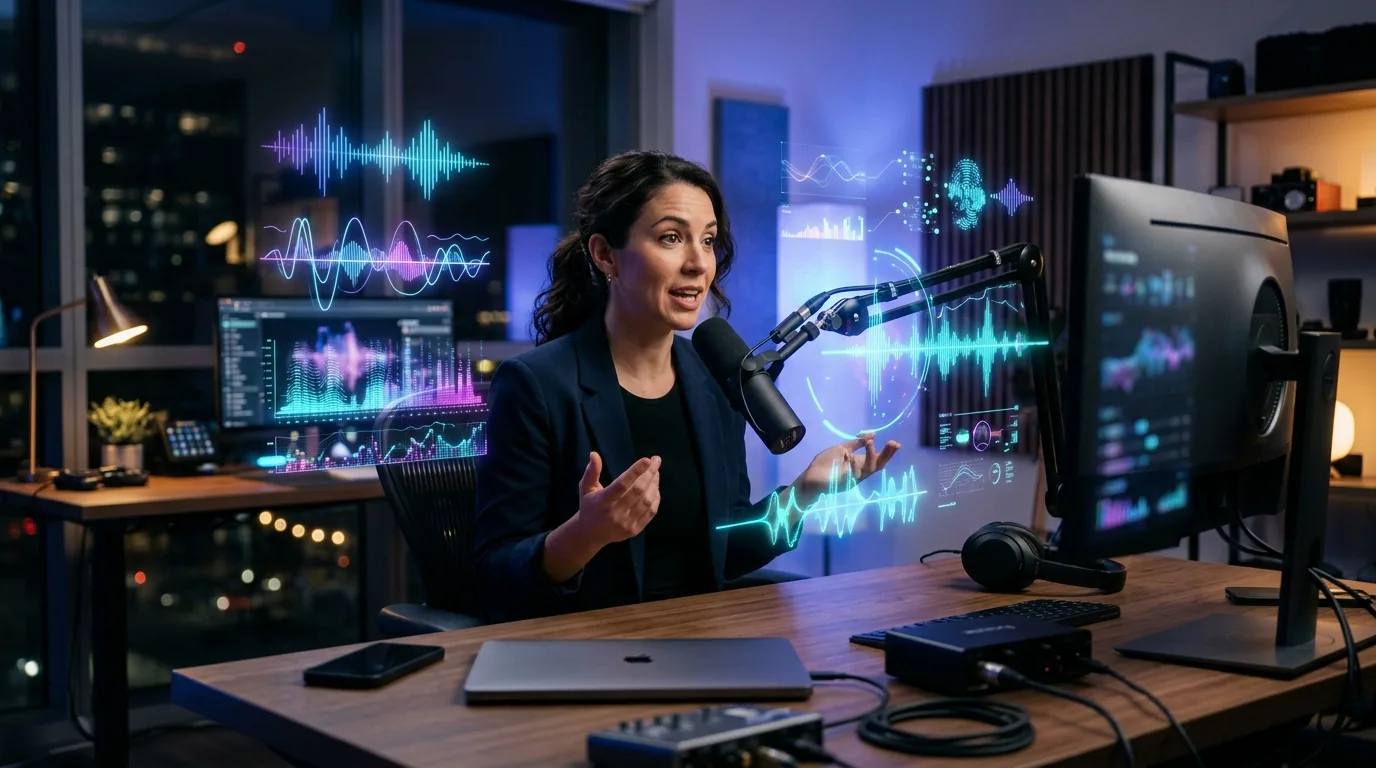
Voice cloning used to be the kind of thing you’d see in a sci-fi movie — expensive, complicated, and slightly creepy. Now? You can do it in under five minutes with Play.ht, and the results are genuinely impressive.
I’ve been testing Play.ht’s voice cloning feature for weeks now (you can read my full Play.ht review here), and I wanted to put together a proper step-by-step guide. Because honestly, the process is simpler than most people expect — but there are a few things you need to get right.
What Is Voice Cloning with Play.ht?
Play.ht uses AI to create a digital replica of your voice. You upload a short audio sample, the AI analyzes your speech patterns, tone, and cadence — and then you can type any text and hear it spoken back in your voice.
It’s not perfect (we’ll get to that), but it’s shockingly close. Good enough for podcast intros, course narration, and internal content — maybe not for audiobooks. Yet.
If you haven’t already, check out Play.ht in our AI tools directory for a quick overview of what it does.
What You’ll Need Before You Start
Before you record anything, gather these:
- A Play.ht account — the voice cloning feature is available on Pro and Enterprise plans
- A quiet room — background noise is the #1 killer of clone quality
- A decent microphone — your laptop mic will work, but a USB mic (even a $30 one) makes a real difference
- 30-60 seconds of clean audio — more is better, but you don’t need a full monologue
That’s it. No fancy equipment. No audio engineering degree.
Step 1: Log Into Play.ht and Navigate to Voice Cloning
Sign into your Play.ht dashboard. From the left sidebar, click on “Voice Cloning” (it’s under the Voices section).
You’ll see an option to “Create a New Voice Clone.” Click it.
Play.ht will ask you to name your voice clone. Pick something descriptive — like “Jonas Narration” or “Podcast Voice” — because you might create multiple clones for different tones later.
Step 2: Record or Upload Your Voice Sample
This is the most important step. You have two options:
Option A: Record directly in the browser. Play.ht has a built-in recorder. Just hit the red button and start talking. Read something natural — a blog post, a news article, even your grocery list. The key is to speak normally.
Option B: Upload an existing audio file. If you already have a podcast episode, YouTube video, or any clean recording of your voice, upload it as a WAV or MP3 file.
Tips for the Best Voice Sample
- Speak AI naturally.
- Vary your tone. Read a mix of sentences — some questions, some statements, some with emphasis. This gives the AI more data to work with
- Avoid background noise. Close the window. Turn off the fan. Put the dog in another room. Seriously
- Aim for 30-60 seconds minimum. More audio = better clone. If you can do 2-3 minutes, even better
Step 3: Let the AI Process Your Voice
After uploading, Play.ht processes your audio sample. This typically takes 30 seconds to 2 minutes — depending on the length of your sample and server load.
You’ll see a progress indicator. Don’t refresh the page (I learned that the hard way).
Once it’s done, your clone appears in your voice library alongside Play.ht’s stock voices.
Step 4: Test Your Voice Clone
Now for the fun part. Type a sentence you’ve never said before into the text editor. Something like:
“Welcome to this week’s episode. Today we’re breaking down the five AI tools that actually saved me time this month.”
Hit Generate and listen.
The first time you hear your own AI voice say something you never recorded — it’s a weird experience. Good weird, but weird.
What to Listen For
- Cadence: Does it sound like you, or like a robot wearing your voice as a costume?
- Pronunciation: Are common words coming through clearly?
- Emotion: Does it feel flat, or does it have some of your natural variation?
If anything sounds off, don’t panic — you can improve it.
Step 5: Fine-Tune and Improve Quality
Play.ht gives you a few levers to pull:
Upload more audio. The more data the AI has, the better it gets. If your first clone sounds a bit robotic, try adding another 2-3 minutes of speech.
Adjust the speed and pitch. Small tweaks can make a big difference. Your natural speaking pace might be faster than the default output — adjust until it feels right.
Use SSML tags for precise control. You can add pauses, emphasis, and pronunciation hints if the standard output isn’t nailing certain words.
Step 6: Use Your Clone in Projects
Once you’re happy with the clone, you can use it anywhere Play.ht’s text-to-speech works:
- Blog-to-audio: Turn your written posts into listenable content — in your own voice
- Podcast intros and outros: Record them once, generate variations forever
- Course narration: Narrate entire modules without sitting in front of a mic for hours
- Video voiceovers: Create consistent narration for YouTube or social media
The export options include MP3 and WAV. You can also embed an audio player directly on your website using Play.ht’s widget.
Common Issues (And How to Fix Them)
“My clone sounds robotic.” Upload more audio. The most common cause is too little training data. Aim for at least 2 minutes of varied speech.
“It doesn’t pronounce my name correctly.” Use the pronunciation guide or SSML phoneme tags. Play.ht lets you specify exactly how to say tricky words.
“The tone is too flat.” Try recording your sample with more emotional range — excited sentences, calm sentences, questions. The AI mirrors what you give it.
“Processing failed.” Check your audio quality. Background noise, clipping, or very low volume can cause processing errors. Re-record in a quieter space.
Is Play.ht Voice Cloning Worth It?
For content creators who produce a lot of audio-adjacent content — absolutely. The time savings are real. Instead of recording every podcast intro, narration, or audio version of a blog post, you type it and generate.
It’s not going to replace a human narrator for a 10-hour audiobook. But for everything else? It’s genuinely useful.
If you’re curious about how Play.ht stacks up against other voice tools, check out our AI tools directory — we’ve reviewed dozens of alternatives across every category.
Bottom Line
Voice cloning with Play.ht is easier than most people think. Record a clean sample, let the AI process it, test the output, and start using it. The whole setup takes less than 10 minutes.
The technology isn’t perfect yet — but it’s good enough for most content creation workflows. And it’s only getting better.